Pages

Tampilkan postingan dengan label win 8. Tampilkan semua postingan

Sabtu, 03 Agustus 2013

Cara mengaktifkan task manager yang tak bisa dibuka

Mengaktifkan Task Manager melalui Group Policy Editor (gpedit.msc)
  • Buka Command Prompt (tekan tombol Win+R atau Start > All Programs > Accecories > Run
  • Ketikkan gpedit.msc
  • Pada User Configuration, Pilih Administrative Template dengan cara mengkliknya
  • Klik System lalu klik Control+Alt+Del Options
  • Pada panel sebelah kanan akan ada tulisan Remove Task Manager
  • Atur menjadi disable 


Mengaktifkan Task Manager melalui Registry Editor (regedit)
  • Buka Command Prompt (CMD)
  • Ketikkan Regedit
  • Masuklah ke HKEY_CURRENT_USER\Software\Microsoft\Windows\CurrentVersion\Policies\System
  • Pada panel sebelah kanan hapus key DisableTaskMgr atau rubahlah value datanya menjadi 0
Itulah cara Mengaktifkan Task Manager secara manual, namun ada sebuah software yang tujuannya juga untuk Enable Task Manager yaitu Taskmanagerfix
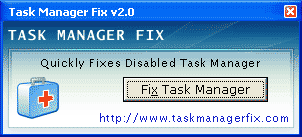
Cara mengaktifkan Task Manager
Program ini mungkin dapat membantu anda yang tidak mau repot atau cara di atas tadi tidak bekerja.
Program ini sangatlah ringan karna hanya berukuran 76 Kb, jika anda mau mendownloadnya silakan kunjungi situs http://taskmanagerfix.com
Bagaimana? Cara manakah yang akan anda coba? atau anda akan mencoba semuanya satu persatu? :D
Silakan anda pilih sendiri, demikianlah tutorial tentang Cara mengaktifkan Task Manager. Semoga bermanfaat untuk anda yang membutuhkannya.

Cara Mempercepat Shutdown Win 7

  • Langkah pertama anda Klik Start >> Run >> ketik regedit lalu anda tekan enter.. lihat gambar di bawah ini..
  • Saat jendela Register Editor muncul kemudian pilih HKEY_LOCAL_MANCHINE, 
  • lalu anda klik folder SYSTEM
  • selanjutnya anda klik CurrentControlSet
  • kemudian klik Control  
  • lalu anda klik kanan pada tulisan WaitToKillServiceTimeout  kemudian pilih Modify
  • ubah  angkanya menjadi 1 dan tekan OK
    Langkah berikutnya anda tutup semua aplikasi dan restart komputer anda..

Jumat, 05 Juli 2013

Cara memebuat shortcut shutdown di Windows 8

Windows 8 tidak dilengkapi dengan tombol Start sehingga akan membingungkan siapa pun yang baru pertama kali memakai sistem operasi ini, terutama ketika ingin mematikan komputer tersebut. Sebenarnya, mematikan komputer cukup dengan menekan tombol Windows+C dan pilih Settings. Setelah itu, barulah mengklik ikon Power. Pilihlah opsi mematikan komputer yang Anda inginkan, misalnya pilih Shut Down untuk mematikan komputer itu.
Jika cara seperti ini dirasa merepotkan, maka Anda bisa memilih menggunakan metode lain untuk mematikan komputer. Salah satunya adalah membuat ikon kecil di dalam desktop yang jika diklik-ganda akan menyebabkan komputer Anda mati. Berikut langkah-langkahnya;

1. Arahkan kursor mouse di atas desktop dan pilihlah New > Shortcut.

2. Lantas ketik perintah pendek berikut ini di dalam kotak Type the location of the item: %windir%\System32\shutdown.exe /s /t 0.

3. Lanjutkan dengan menekan tombol Next.

4. Seharusnya, Anda akan melihat tulisan Shutdown di dalam kotak teks Type a name for this shortcut. Jika ingin mengubahnya dengan nama yang lain, cukup ganti dengan tulisan yang berbeda.

5. Tekan tombol Finish.

6. Di dalam desktop akan muncul ikon bertuliskan Shutdown. Kalau Anda klik-ganda, maka komputer akan dimatikan. Sekarang, Anda bisa mengganti ikon shortcut itu dengan cara mengklik-kanan dan memilih Properties.

7. Pilih tombol Change Icon dan klik pada model ikon yang Anda inginkan.


8. Tekan tombol OK dan akhiri dengan menekan tombol Apply serta OK.
Jadilah, ikon shutdown di desktop anda.

sumber : rumpitekno.com

Sabtu, 18 Mei 2013

Windows XP is going to END

Companies could be spending three times more if they stay on Windows XP than migrating to the advanced versions of the software, as Microsoft Corp plans, says an IDC study,  to end support for Windows XP on April 8, 2014.

An estimate suggests the cost of upgrading to Windows 7 or Windows 8 will be $95 (Rs 5,225) against the cost of staying on the XP platform, which will be $300 (Rs 16,500) a user, followed by almost twice the cost in the subsequent year, should they choose to opt for a custom support contract. The cost for not migrating is only the documentable one, as this doesn’t include costs related to business loss due to security and data breach threats, productivity loss and similar factors.

Microsoft plans to end support for Windows XP on April 8, 2014, as it is three generations behind the current product technology. It, therefore,  becomes necessary for companies to plan their migration and save cost in the long run.

“Approximately 50-60 per cent of the installed PC (personal computer) base in enterprises are still running Windows XP. This is an alarming situation, as non-migration puts businesses at risk of security breaches and could create a big dent to the company’s brand image” said Amrish Goyal, director-Windows business group, Microsoft Corp (India). “It takes money to save money. Migration to newer and better technologies eventually gives high return on investment and saves a lot of money in the long run.” 

Bharti Airtel has seen savings of Rs 2,000 per PC by moving from Windows XP to Windows 7.

Data security and privacy in banks are driven by ITAA 2008. Stringent regulatory requirements by the Reserve Bank of India mean banks will not only have to be answerable for the loss of revenue but severe penalties as well. Organisations that ignore the risks and will not take the necessary steps to mitigate these, will be liable to both its customers and the regulatory bodies.

As companies mature and face increasing competition in an ever-globalising economy, they are keen to have risk assessments based on industry standards. These standards force companies to evaluate all forms of security risks and take mitigating steps to avoid security breaches and manage the key business and information technology assets.


EASING OUT WIN XP
When organisations put together their plans for migrating from Windows XP, they should categorise their desktop infrastructure into four broad categories:
  • PCs running Windows 7/8: For this segment, it is important to review applications and devices users access and ensure that these are fully compliant with both Windows 7 and Windows 8. This will ensure that users are able to benefit from the superior user experience that the newer versions of Windows delivers along with the security and manageability benefits
     
  • PCs shipped with Windows 7 but downgraded to Windows XP: For such users, if the hardware supports Windows 7 / Windows 8, then a detailed migration plan should be put together that addresses various important issues, including addressing potential application compatibility issues
     
  • PCs that don’t have Windows 7/8 compliant hardware: These machines were most probably bought during or before the release of Windows 7, and do not have the minimum hardware specs to run Windows 7 /8. This segment should be considered for a hardware refresh (new PC purchase) as the machines are already four years old
     
  • PCs already slated for refresh: These users should proceed with the purchase plan as budgeted. The team that is overall in charge of the migration might want to sync the purchase and deployment plan with the other segments so that the team can benefit from the synergies

Sabtu, 23 Maret 2013

Emulator Windows Online

Sobat,barangkali ada yang mau nostalgia dengan windows : 2000,98,ME??atau kangen xp dan vista...mau coba tapi ga punya comp untuk win jadul atau gak punya virtual box??tenang...kini ada situs yang bernama temulator.com atau total emulator.....silahkan dicoba dengan mengklik INI 
contoh emulator win xp : http://www.temulator.com/flash/controlBig.php?varos=xpeng             

Postingan Lama Beranda

Pembaruan

Visitor